Home / TableMint / How-to / this guide
TableMint how-to
Copy a website table into Google Sheets
To get a table off a website and into Google Sheets, you want tab-separated values on the clipboard so each cell lands in its own sheet cell. TableMint’s Copy (Sheets) button does that in the current tab. TableMint is not yet listed on the Chrome Web Store.
Do it with TableMint
- Open the page and click the TableMint icon, or click Pick on page, hover until the table highlights, and click it.
- Click Copy (Sheets). TableMint copies the table as tab-separated text. A short status message confirms the row count.
- Open Google Sheets, select a starting cell, and paste. Columns should line up with the source table.
You can also download CSV or a basic Excel workbook for free and upload that file to Drive if you prefer a file instead of a paste.
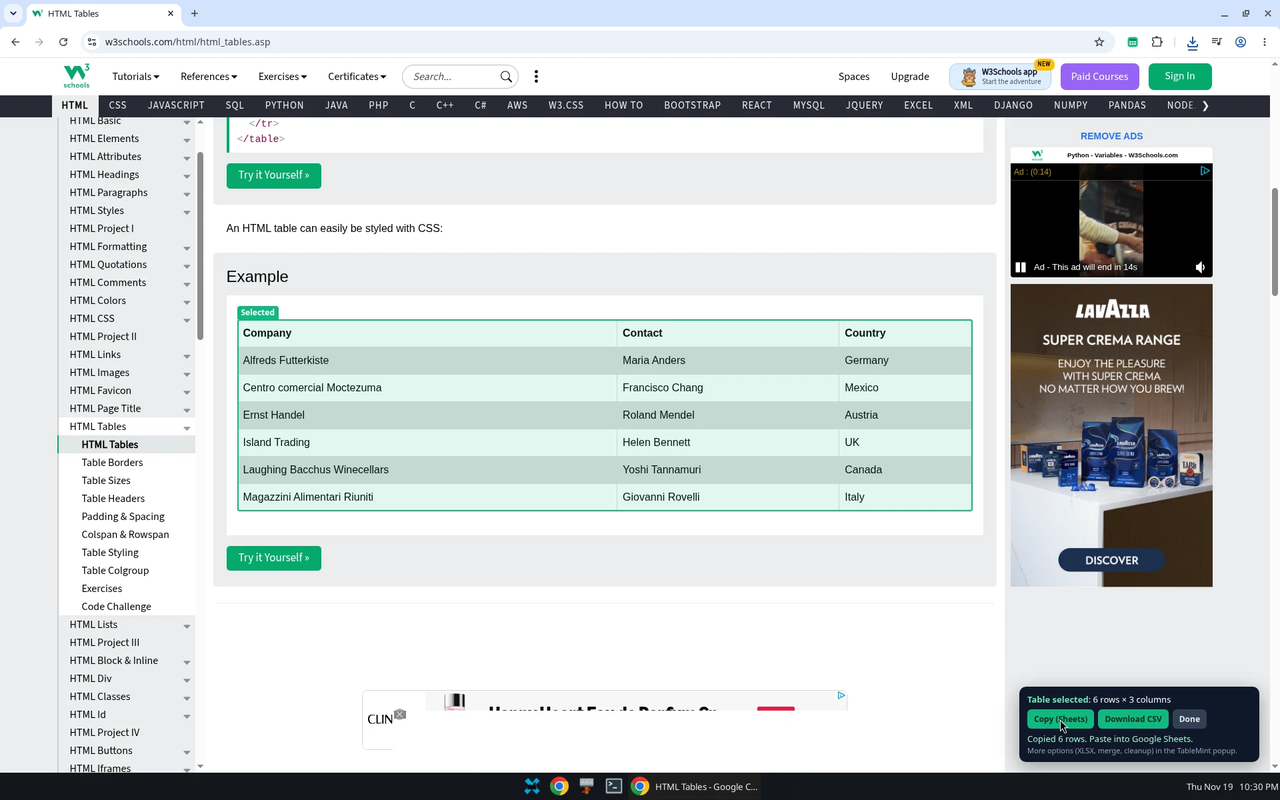
If the paste looks wrong
- If everything landed in one column, the clipboard may have used commas instead of tabs. Use TableMint’s Copy (Sheets) button rather than a plain copy of the HTML.
- If a heading is repeated, the page may include a footer that mirrors the header. TableMint drops an exact footer mirror; a differently worded bottom header row is kept.
- If only some rows appeared, the site may be showing a virtualized or “load as you scroll” grid. The popup warns when only the visible rows are on the page. Scroll capture, which collects further rows, is a Pro tool: coming soon, not on sale.
A built-in option: IMPORTHTML
Google Sheets can pull some public HTML tables directly:
=IMPORTHTML("https://en.wikipedia.org/wiki/List_of_largest_companies_by_revenue","table",1)
This is useful when the table is a plain HTML table on a stable public URL. It does not help when you are signed in, when the table is built as an ARIA grid, or when you only want the table that is in front of you right now. TableMint is for that last case: it reads the current tab after you click it, and it does not add a formula that keeps fetching the page.
Privacy
The copy stays on your clipboard. TableMint does not upload the table and, in the current free features, makes no network requests. Details are in the TableMint privacy policy.
More guides
- Export an HTML table to Excel
- Copy a website table into Google Sheets
- Save a Wikipedia table as CSV
- Copy a table from a website into Excel
- Export ARIA and other non-table grids
Product privacy: TableMint privacy policy.